---
title: Resolving Filing Errors
description: Getting started in Warchest Compliance
---
[Skip to content](https://support.mywarchest.com/en/compliance/errors-google-sheets#main-content)
English
Show submenu for translations

Open main navigation
Close main navigation
- English
Show submenu for translations
- Contact us
Contact us
What can we help you with?
- There are no suggestions because the search field is empty.
1. [Compliance](https://support.mywarchest.com/en/compliance?hsLang=en)
2. [FEC Forms and Reporting](https://support.mywarchest.com/en/compliance/fec-forms-and-reporting?hsLang=en)
# Resolving Filing Errors
## Review and Resolve Filing Errors with shareable Google Sheets
#### Warchest Compliance identifies potential errors in data prior to filing by flagging issues such as missing information, over-the-limit contributions, and missing line numbers.
Our Google Sheets tool in the Filing Errors menu allows you to export a Sheet of Filing Errors and share it with your team to collect necessary data, and then re-import it back into Warchest Compliance.
### **Reports \> Filing Errors**
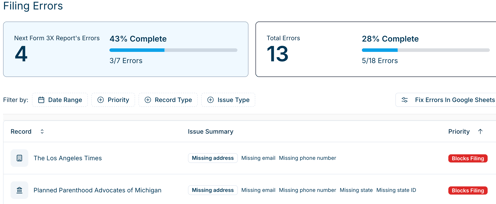
Navigate to **Reports -\> Filing Errors** from the left toolbar or the Home page shortcut.
Filing Errors can be sorted by Issue Type: Addresses, Emails, Phone Numbers, Employment, Transactions, and Over Contribution Limit.
- **Blocks Filing tag**. These errors affect a FEC filing. For example - a donor’s missing occupation is flagged as a Filing Error in our app. *Note that these do not block you from filing a report.*
**
#### Fixing Errors - One at a Time
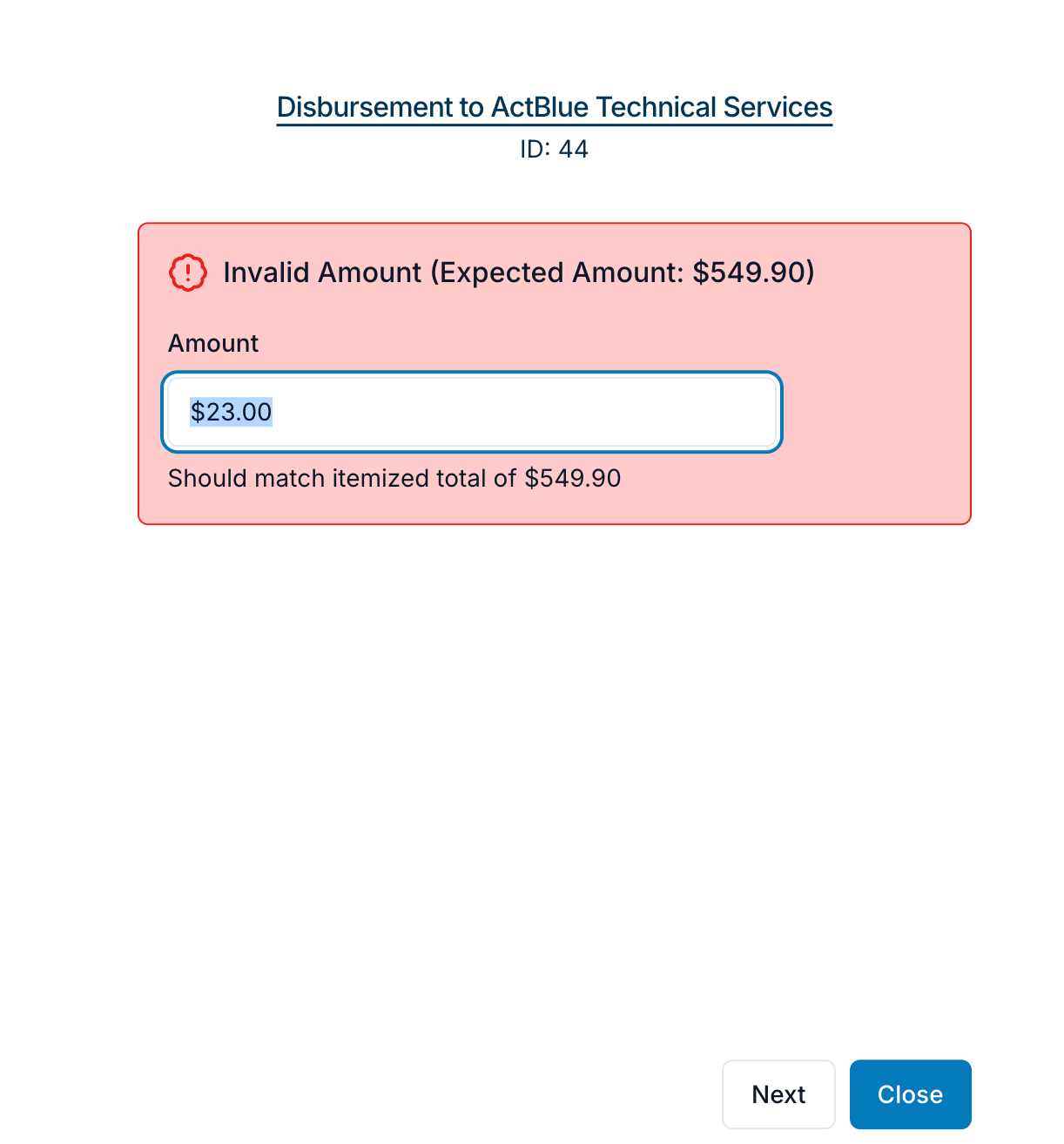
- Click on any Record to view a Filing Error. Warchest Compliance will open the error in a pop-up window with only the flagged fields for your review.
- You can make changes and click through to the next Error or close the pop-up when you’re done. You can also view the full Record by clicking on the Record Title within the pop-up.
### Export Errors to a Google Sheet
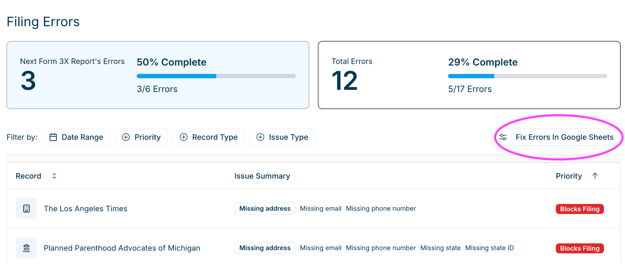
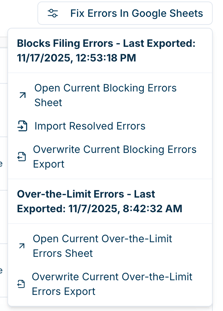
Click **Fix Errors in Google Sheets** to view your export options. You can export either **Blocks Filing Errors**, or **Over-the-Limits Errors.** Each of these Sheets are exported to a separate sheet so that you can easily share one or the other with the client.
Our Google Sheets tool lets users working with a team or client to share a list of transactions with missing data. For example, you may want your team or a client to contribute missing address or employment information.
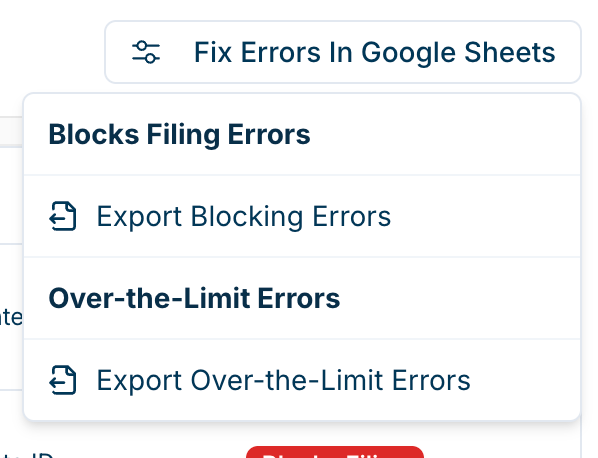
- If you have previously exported blocking errors and have not yet re-imported that Google Sheet, you’ll have more options:
****
### IMPORTANT!
- **All new entities (Contacts, Donors, Vendors, Committees) must be entered into Warchest Compliance directly and cannot be entered via a Google Sheet.**
- **Extra rows in the Google Sheet are not editable.**
- **The Google Sheet will include all errors for all time, not only those relevant to the next filing deadline.**
A notification bar will appear in the app once the Google Sheet export is ready. Then you’ll see the “Open Current Blocking Errors Sheet” option in the dropdown. Click that to open the Google Sheet in a new tab.
- Once your Google Sheet is open in a browser tab, you can share it with any collaborators needed to collect the missing data to resolve errors.
#### Edit Red-Shaded Fields Only to Resolve Errors
- Filter by Error Type with the bubble at the top.
- The Google Sheet has editable cells that are shaded light red. White cells are locked and cannot be edited. This protects your filled data in Warchest Compliance from being accidentally overwritten.

#### Import Updates
- **Import Resolved Errors** to bring your updated data from the Google Sheet into Warchest Compliance. Once you Import the Sheet, data will no longer appear that Sheet. This is to prevent any version control issues. After importing, if you want to keep working on errors, you will need to re-export a new version of the Sheet.
- If you do not address all errors in the Sheet, these will continue to appear as Filing Errors and can be exported to your next Google Sheet for error resolution.
---
### **Need More Help?**
Visit the rest of our **Help articles** for more in-depth details on Warchest Compliance features, or email us at support@mywarchest.com.
- [Getting Started](https://support.mywarchest.com/en/compliance/getting-started?hsLang=en)
- [Transactions](https://support.mywarchest.com/en/compliance/transactions?hsLang=en)
- [Imports and Deposits](https://support.mywarchest.com/en/compliance/imports-and-deposits?hsLang=en)
- [Reconciliation](https://support.mywarchest.com/en/compliance/reconciliation?hsLang=en)
- [FEC Forms and Reporting](https://support.mywarchest.com/en/compliance/fec-forms-and-reporting?hsLang=en)
- [FAQ](https://support.mywarchest.com/en/compliance/faq?hsLang=en)
[](http://mywarchest.com)
[mailto:email@email.com](mailto:email@email.com)
Copyright © 2026, My Warchest, Inc.