
1. Log in to Warchest Compliance. For new accounts, choose the “Create Account” button when you accept your invitation.
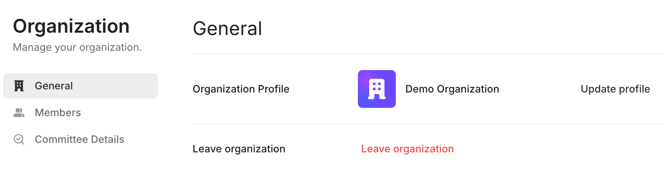
Manage your Organization:
- On your first login, you’ll be directed to your Organization’s Manage page. Click the red banner and follow the prompts to set up 2FA for your account.
- Add team members to the Organization in the Manage view. They’ll be able to accept your invitation if they have the same domain as your email address.
Committee Details. Your committee is set from a list directly pulled from FEC.gov based on its FEC ID. Don’t change it!
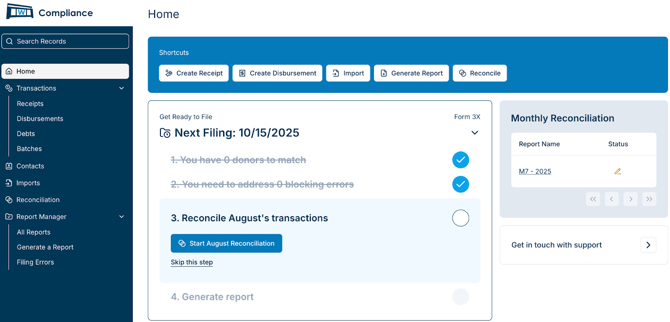
2. Home. On your Home dashboard, you’ll see key open tasks and shortcuts for frequently used features.
Shortcuts:
- Create Receipt. Use this feature to enter receipts that don’t automatically import with one of our integrations or on a CSV. You’ll want to use Import to add a CSV of transactions!
- Create Disbursement. Same idea here as above! Enter a disbursement that’s not imported with an integration or in a spreadsheet.
- Create Contacts. Add an individual, organization (including vendors) or committee to your contacts. Note that Federal Committees cannot be added to Contacts until you are creating a Transaction for that Committee.
- Import. Bulk import transactions with a CSV using our template, or upload your own CSV and map a new template.
- Generate Form.
- Reconcile. Use our Reconcile tool to reconcile your transactions within any date range, and generate full CSVs of Schedule A and Schedule B transactions, as well as a form preview.
If you have a filing deadline approaching within 60 days, your Home page displays a Get Ready to File checklist.
- Skip ahead in the dashboard’s Get Ready to File checklist as you need.
- Match potentially duplicate donors with our proprietary de-duplication & record matching flow.
- View Blocking Errors (errors that will generally be flagged by the FEC), such as a missing Employer field.
- Reconcile transactions.
- Generate an FEC form.
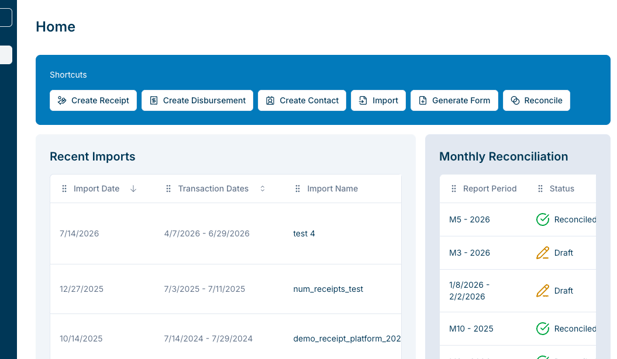
When a filing deadline is not within the next 60 days, Recent Imports appear on the Home dashboard instead:
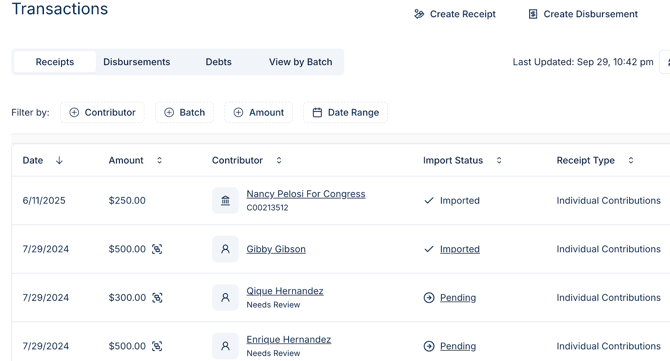
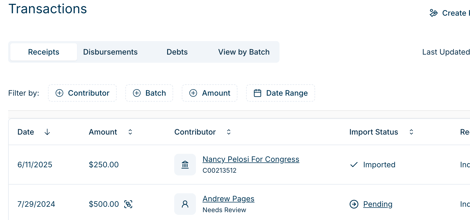
3. Transactions. Manage Receipts, Disbursements, Debts, and Batches here.
- Filter and sort transactions
- View and correct Needs Review errors flagged for each transaction:
- Potential errors and duplicates will appear on the Dashboard and in Filing Errors tab under Form Manager.
- Use the Receipts or Disbursements view to search for and open individual transactions. You’ll be able to select the type of transaction, and required fields for filing will appear based on your selection:
4. Contacts. Manage donors, committees, and organizations here.
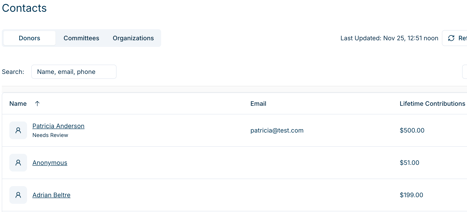
Every import of new transactions, whether using our Import Tool or automated Actblue or Numero ingestion, will filter contacts through our proprietary de-duplication tool. Visit the Imports Menu to see Imports with "Matches Available" for your review.
Contacts with missing information will have a "Needs Review" tag below the name.
To review and address Filing Errors in Contact data with our Filing Errors wizard, visit the Filing Errors tab below Form Manager.
Need More Help?
Visit the rest of our Help articles for more in-depth details on Warchest Compliance features, or email us at compliance@mywarchest.com.