---
title: How to create an Independent Expenditure
description: How to create a independent expenditure
---
[Skip to content](https://support.mywarchest.com/en/compliance/how-to-create-an-independent-expenditure#main-content)
English
Show submenu for translations

Open main navigation
Close main navigation
- English
Show submenu for translations
- Contact us
Contact us
What can we help you with?
- There are no suggestions because the search field is empty.
1. [Compliance](https://support.mywarchest.com/en/compliance?hsLang=en)
2. [Transactions](https://support.mywarchest.com/en/compliance/transactions?hsLang=en)
# How to create an Independent Expenditure
## Report Independent Expenditures for regular filings or 24/48 hour reports.
### To get started, Create a Disbursement.
#### **Federal IEs**
- Create a Disbursement.
- In this screen, select **Federal IE** from the top right menu, “Independent Expenditure.” Make sure you do not toggle back to the Disbursement field up top, because you’ll want to save this as an IE.
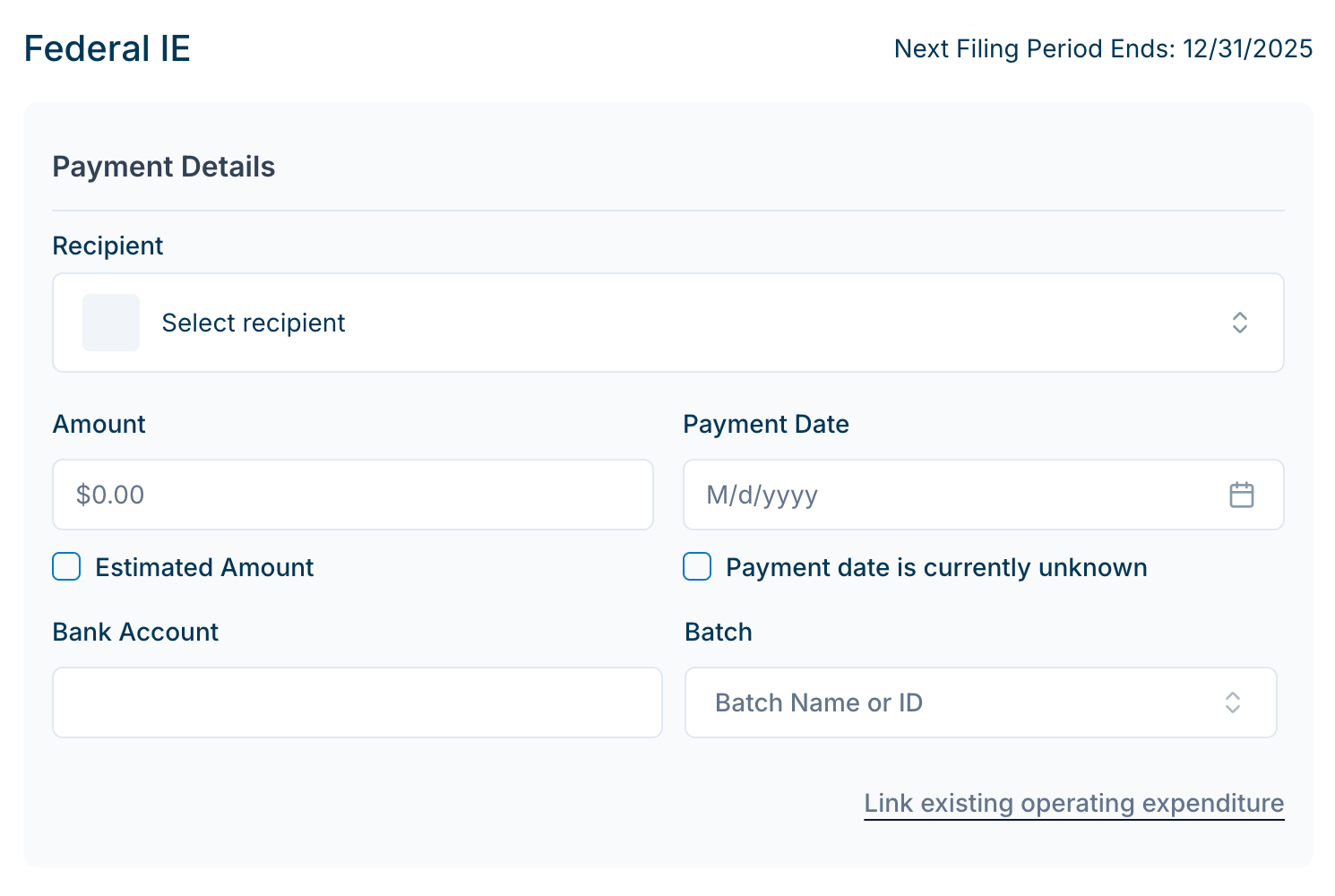
**Recipient.** If the Recipient is not yet in your database, you can create a new one here. Otherwise, Click on “Select Recipient” to either select or create an Organization, Committee, or Individual.
**Amount.** Enter the total amount of the Federal IE. If needed, check the box to indicate an Estimated Amount for this reporting period.
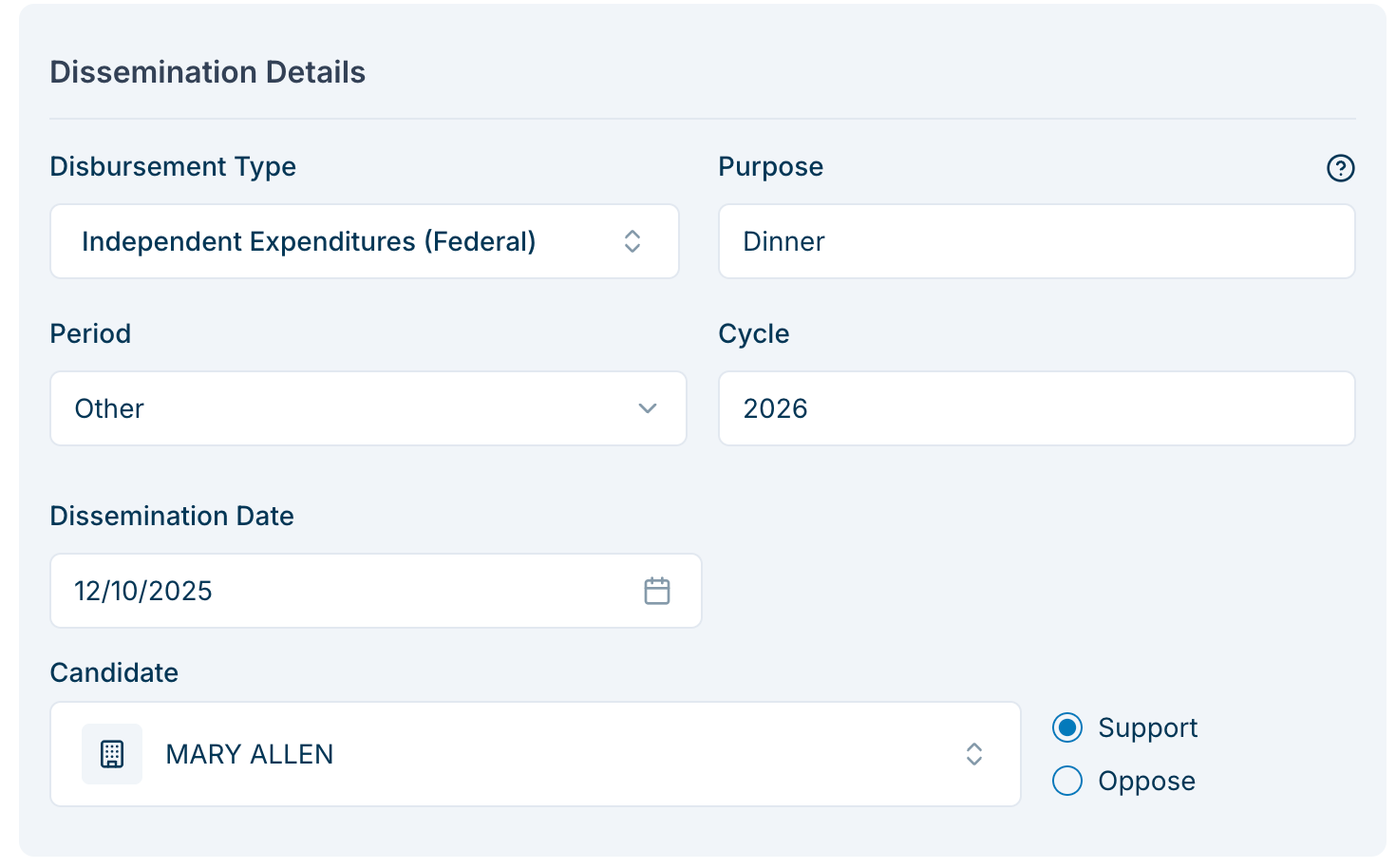
- *Note* - if you select Estimated Amount, then “(estimate)” will populate in the Purpose field of the Dissemination section below.
**Payment Date.** Enter the date of disbursement for the operating expenditure.
**Bank Account** is an optional field.
Link to an existing operating expenditure - If needed, this will allow you to search existing Disbursements for the Recipient in your database to link to this Independent Expenditure.
- You’ll only be able to link to “Other Federal Operating Expenditures” and the Recipient must match the Federal IE Recipient.
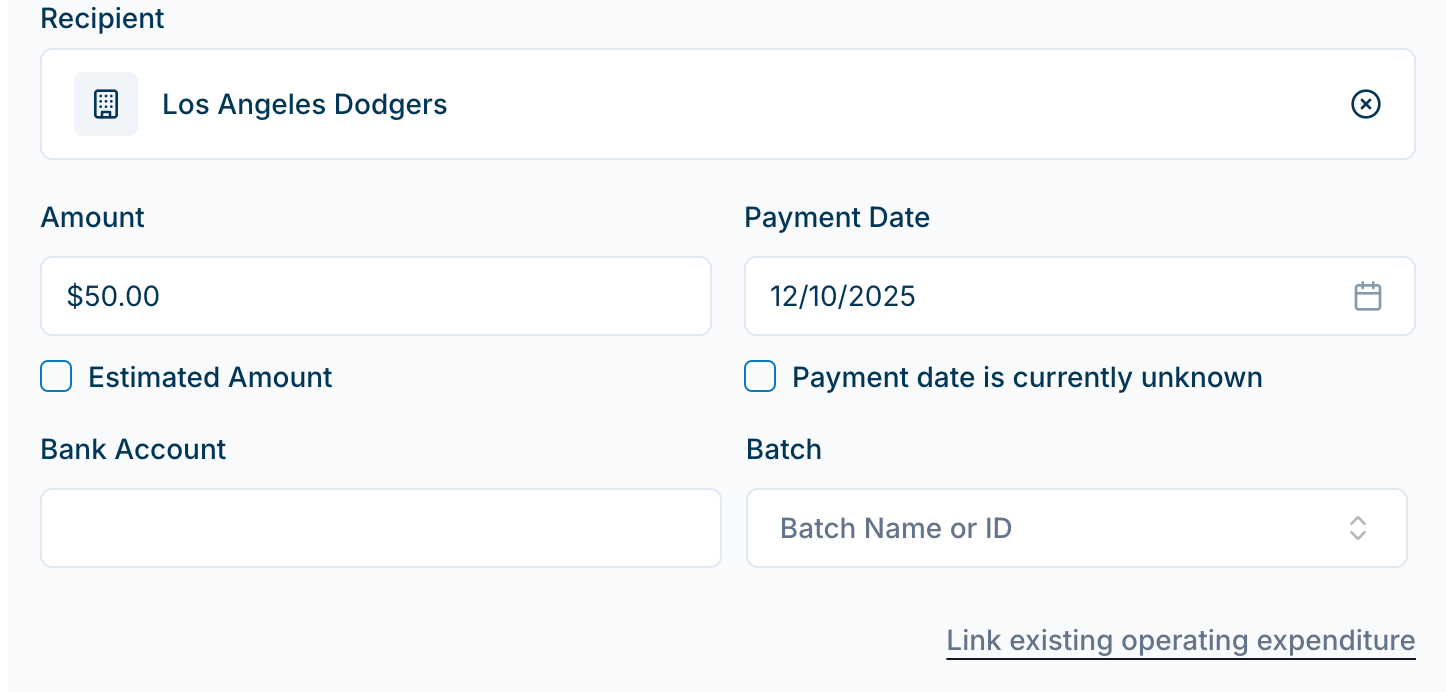
- Creating an IE with an existing operating expenditure will also prompt the database to create a linked negative expenditure, which will be linked to this IE when you view either transaction. This prevents double-counting the Operating Expenditure and the Independent Expenditure.
**Unknown Payment Date.** If you are entering an IE with a known dissemination date but the disbursement date has not occurred yet or is unknown, check the box for “Payment date is currently unknown.
- You’ll be prompted to set a dissemination date (appears below), AND link a debt or an operating expenditure.
**Estimated Amount.** Check this box if the amount is estimated. This will pre-fill the Purpose field with “(estimated amount)”.
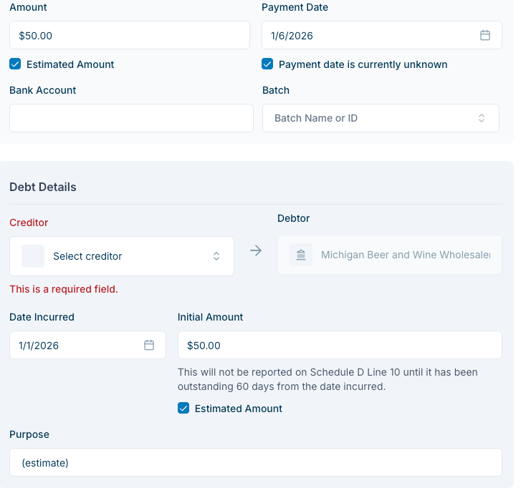
Once you Create the Disbursement at the bottom of this page, the **Debt** (if applicable) will be saved and linked to this Independent Expenditure.
**Dissemination Details.**
****
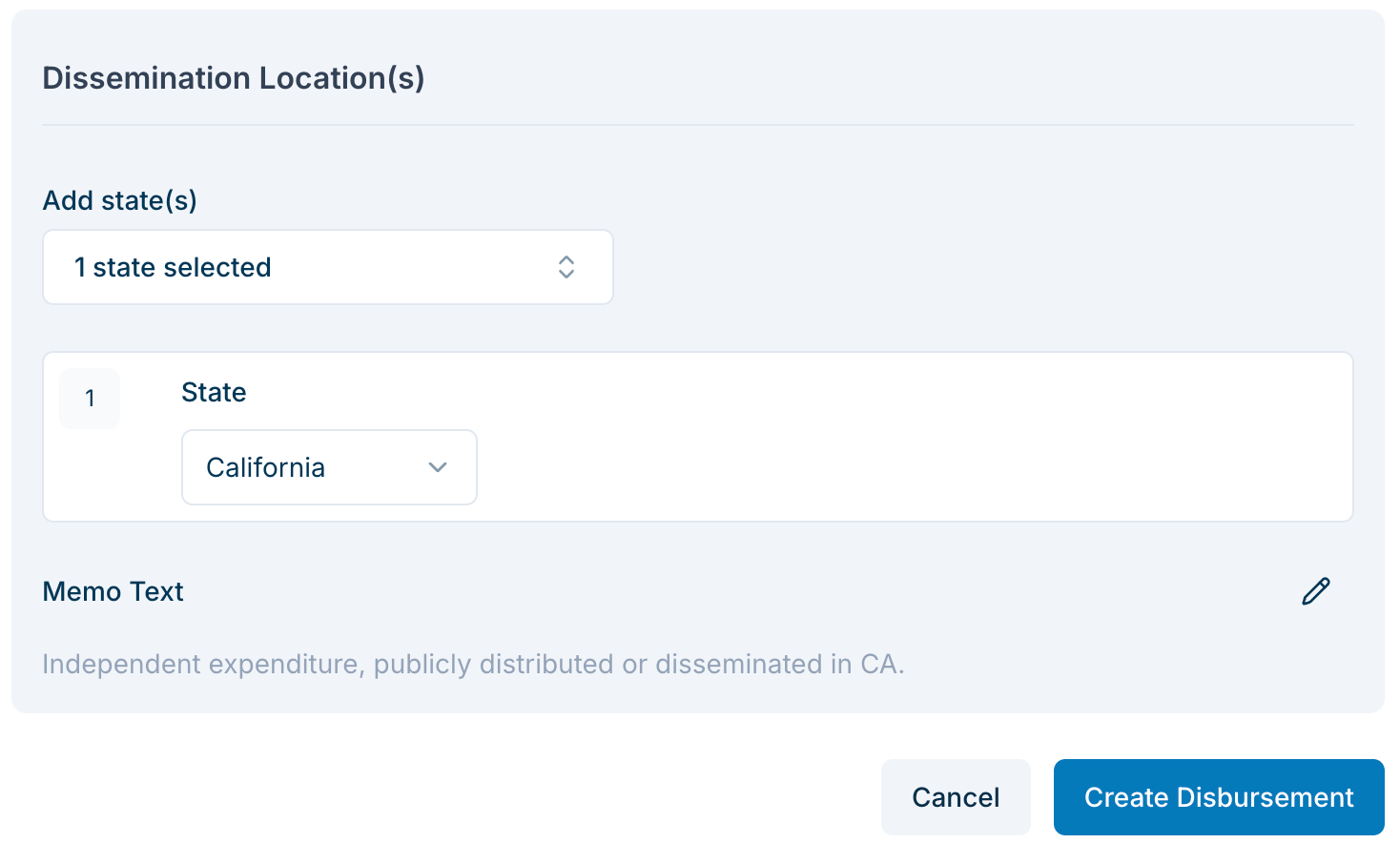
**Dissemination Location(s).** The default is the state in which the relevant candidate is running.
- If the IE is disseminated in multiple states: You’ll be able to fill the State, Amount, and Memo Text for each state.
- For a single dissemination state, only the Memo Text field will appear.
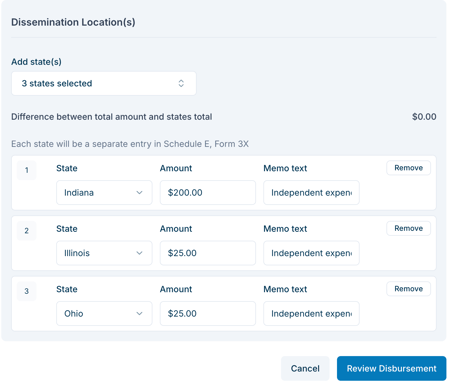
For three States, three separate Disbursements will be created. In any of these individual Disbursement records, you’ll be able to see the details of the related Disbursement records created by that IE.
When five or more states are selected, they will be automatically listed in order of upcoming primary dates.
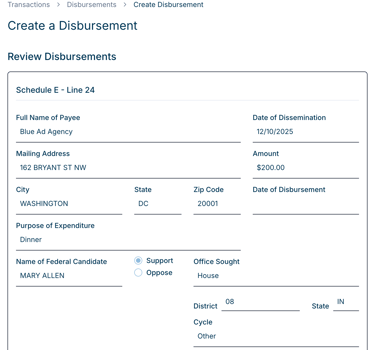
**Review Disbursement.** Click the Create Disbursement button to see a preview of how your Independent Expenditure data will appear on Schedules B, D, and E:
#### **Non-Federal IEs**
In the Create a Disbursement Page, select “Non-Federal IE” from the **Independent Expenditure** tab.
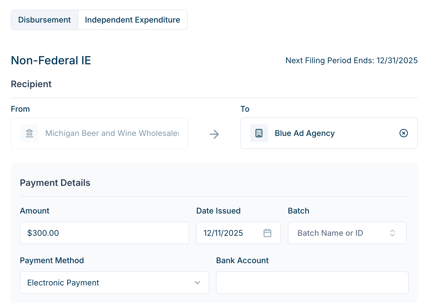
The Disbursement Information will pre-populate the Purpose Field, and pre-populate the suggested Line number. You can edit these fields as needed. Select a Period and Cycle, and complete any other fields you need.
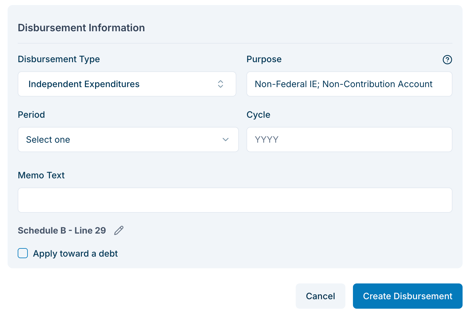
The Non-Federal Independent Expenditure has fewer scenarios and fields, so a Review Disbursement step does not appear. When you click **Create Disbursement**, the Non-Federal IE will be finalized and saved to your database.
Have questions? Email us at [compliance@mywarchest.com](mailto:compliance@mywarchest.com).
- [Getting Started](https://support.mywarchest.com/en/compliance/getting-started?hsLang=en)
- [Transactions](https://support.mywarchest.com/en/compliance/transactions?hsLang=en)
- [Imports and Deposits](https://support.mywarchest.com/en/compliance/imports-and-deposits?hsLang=en)
- [Reconciliation](https://support.mywarchest.com/en/compliance/reconciliation?hsLang=en)
- [FEC Forms and Reporting](https://support.mywarchest.com/en/compliance/fec-forms-and-reporting?hsLang=en)
- [FAQ](https://support.mywarchest.com/en/compliance/faq?hsLang=en)
[](http://mywarchest.com)
[mailto:email@email.com](mailto:email@email.com)
Copyright © 2026, My Warchest, Inc.