
Bulk import receipts and other transaction data from your fundraising tools or spreadsheets.
Warchest Compliance lets you upload transaction data from common fundraising platforms (ActBlue, NGP VAN, Numero) or your own CSV spreadsheets. Our Import tool leads you through four steps: configure the upload, identify contacts, map columns, and import the file.
Step 1: Upload
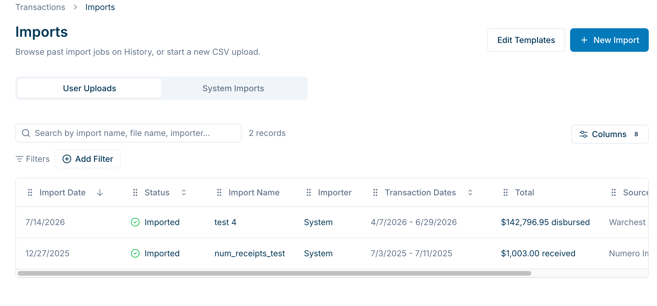
Navigate to the Import section in Warchest Compliance and select + New Import.
Upload Name. Give your import a descriptive name (e.g., “ActBlue Q2 2026”). This name will appear on your Import Dashboard so your team can easily identify it.
Upload Type. Select the type of transaction you are importing (e.g., Receipts).
- Once you select an upload type, you can view example formatting and upload guidelines specific to that type.
- Note: Required fields are dynamic. For example, a vendor record will not require First Name and Last Name, but an individual donor will.
Data Source. Choose the platform your data came from (e.g., ActBlue, NGP VAN, or Warchest-style CSV).
Select a Saved Template. If you have previously saved a column mapping template for this CSV format (same headers), you can apply it here instead of mapping manually.
File. Attach your CSV file. The system will validate that your file’s columns match a known mapping for the selected source and type. If validation fails, an error message will appear.
- Note: For ActBlue uploads, you must provide Warchest Compliance's support team with an ActBlue UUID even if you do not use the API. For more information on obtaining a UUID, click here.
Step 2: Identify Contacts
After your file is uploaded, Warchest processes and auto-maps your columns to known data fields.You'll review and correct the mapping at the next step.
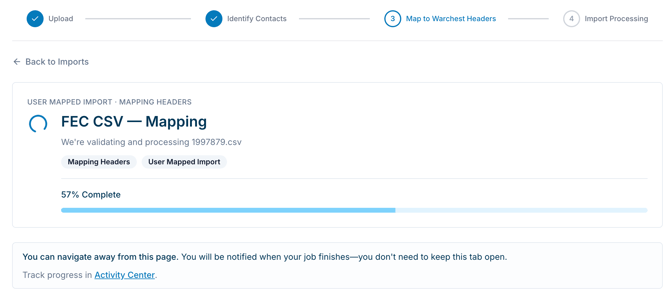 When validation is complete, you'll be prompted to identify how Contacts are identified in your CSV's headers: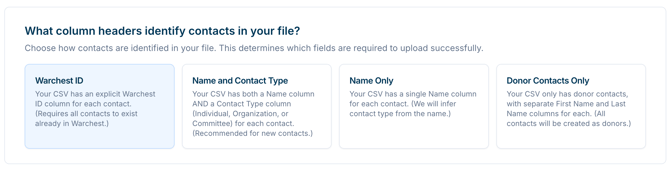
Step 3: Map to Warchest Headers
Review the Mapping. Check that each column in your file is matched to the correct Warchest field. You can adjust any mapping that was incorrectly assigned.
Custom Fields. Any columns in your file that do not match a known Warchest field can be created as Custom Fields. You can name and edit these custom fields during the mapping step.
Minimum Required Fields. The system will alert you if any required fields are missing from your mapping: Amount, Transaction Date, Line Number, and Contributor Name. If required data is missing, you will need to correct your file externally and re-upload.
You can save your mapping selections at the bottom of the screen before navigating away from this page.
Step 4: Import Processing
Once your mapping is confirmed, click Start Import.
- Normalize: The system renames and transforms your columns into internal field names, validates structure (required columns, allowed values, line numbers), and filters rows as needed (e.g., ActBlue rows that are not “completed” contributions may be dropped).
- Load: Normalized data is written to the database as transaction records, with parties (donors, vendors, committees) resolved or created automatically.
- Match: Entity matching runs to flag potential duplicate donors or contacts for you to review.
- Validate: Data validation checks for filing readiness (e.g., missing FEC line numbers, missing cycle/period, incomplete contact details). Issues that block filing are flagged as errors; others appear as warnings.
You will be notified when processing is complete.
Review and Resolve Errors
If any rows fail validation, Warchest displays a detailed error summary.
Error Types. Errors fall into two categories:
- Blocking errors: Must be fixed before the data can be included in a filing, or the FEC will likely reject the filing or issue an RFAI (e.g., missing required fields).
- Warnings: Should be reviewed but do not prevent filing. Always review the Filing Errors tab in Warchest Compliance prior to filing. There may be errors that pass FEC validation but may still trigger additional FEC review.
After Your Import
Once your import is finalized, you can:
- Navigate to Transactions to view the imported data alongside your existing records.
- View Import Details to see a post-import summary, including how many rows were imported, how columns were mapped, and any linked records (e.g., conduit transfers).
- Rollback the import if needed.
- Save your mapping as a reusable template for future imports from the same source.
- Match contacts to resolve any duplicate donor or entity suggestions surfaced during processing.
Have questions? Email us at compliance@mywarchest.com.